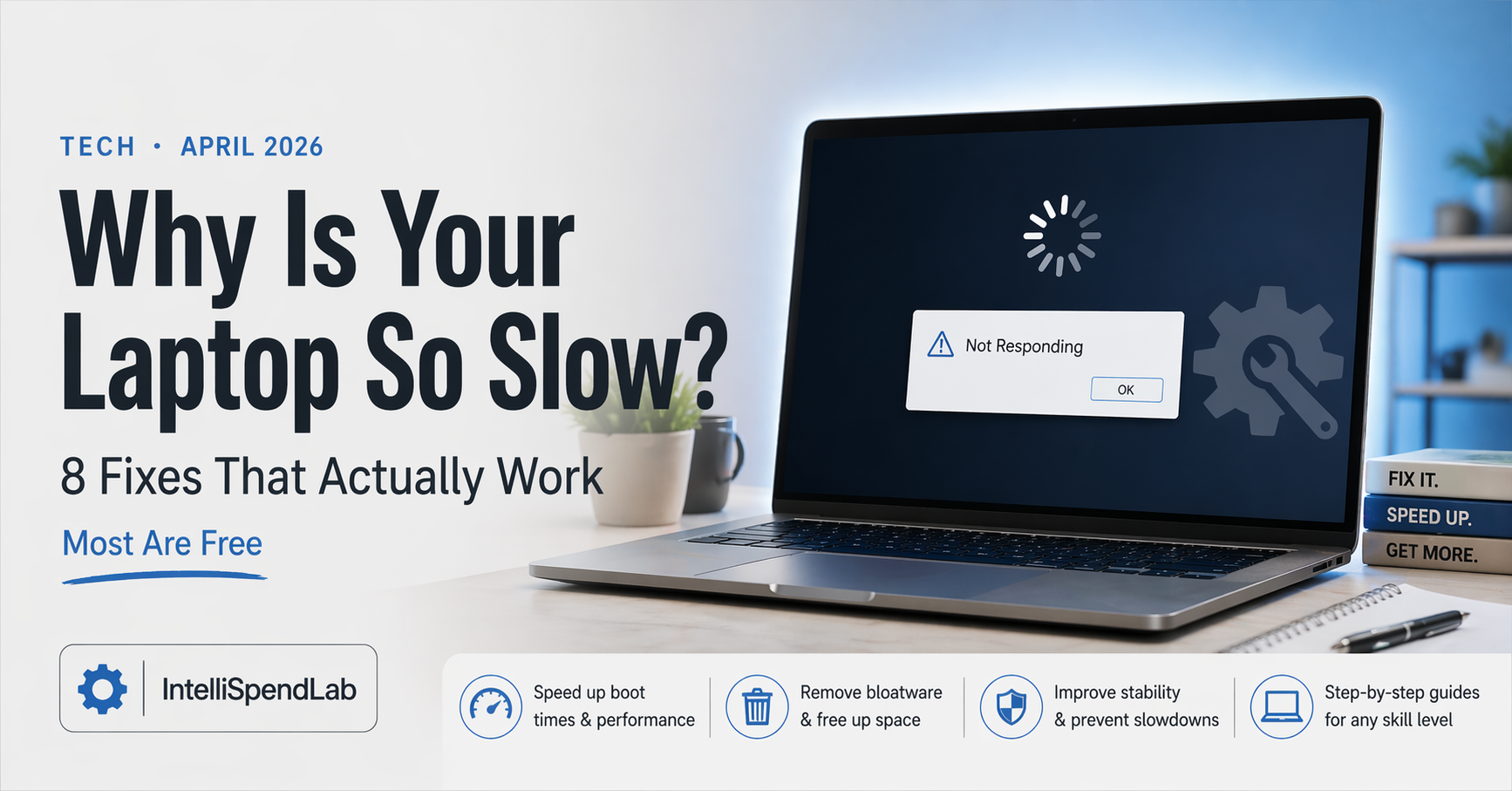
Why Your Laptop Is So Slow — And 8 Fixes That Actually Work
Published: April 24, 2026 | Category: Tech
A slow laptop is one of the most universally frustrating tech experiences — and one of the most misunderstood. Most people assume the solution is buying a new one. Most of the time, it isn’t.
The majority of laptop slowdowns have identifiable causes that can be fixed in under an hour without spending anything. A small number of cases do indicate hardware that has genuinely reached its limits. Here’s how to tell the difference, and what to do about it.
Why Laptops Slow Down: The Real Causes
Understanding the cause determines the fix. The most common culprits, in order of frequency:
Too many startup programs — Every app that launches at startup runs in the background consuming CPU and RAM. Most users have accumulated dozens of these over years of software installation without ever reviewing them.
Full or nearly full storage — When your drive is more than 85–90% full, performance degrades significantly. The operating system needs working space to function, and a packed drive creates constant bottlenecks.
Browser with too many extensions — Chrome and Edge in particular become significant resource consumers when loaded with extensions. A browser with 15 extensions can consume more RAM than most other applications combined.
Thermal throttling — Laptops automatically reduce processor speed when they get too hot to prevent damage. Dust buildup in cooling vents, using a laptop on soft surfaces that block airflow, and aged thermal paste all cause this. The laptop isn’t broken — it’s protecting itself.
Malware or unwanted background processes — Cryptomining malware, adware, and other unwanted software run silently in the background consuming resources. This is often the cause of sudden, unexplained slowdowns.
Aging hard drive (HDD vs SSD) — Older laptops with traditional spinning hard drives are dramatically slower than any modern SSD. If your laptop has an HDD and you haven’t upgraded, this is likely the single biggest performance bottleneck.
RAM limitation — Running demanding applications with insufficient RAM forces the system to use the storage drive as virtual memory, which is dramatically slower.
OS bloat over time — Windows and macOS accumulate temporary files, logs, and cached data over years of use that gradually consume storage and processing resources.
8 Fixes in Order of Impact
1. Audit and Cut Your Startup Programs (Free — 5 Minutes)
This is the single highest-impact change for most users and takes minutes.
Windows 11: Right-click the taskbar → Task Manager → Startup apps tab. Sort by “Startup impact” — anything marked High that you don’t need immediately on startup, right-click and Disable. Common offenders: Spotify, Discord, Teams, Zoom, OneDrive, Adobe updaters, and various manufacturer utilities.
Mac: System Settings → General → Login Items. Remove anything you don’t need launching automatically.
Most users find 10–20 programs running at startup they had no idea about. Disabling them can cut boot time in half and noticeably improve general responsiveness.
2. Free Up Storage Space (Free — 15–30 Minutes)
If your drive is more than 80% full, this is urgent.
Windows: Settings → System → Storage → Storage Sense. Enable automatic cleanup, then run “Temporary files” manually. Also check “Large files” to identify space hogs. The built-in Disk Cleanup tool handles most of this.
Mac: Apple menu → About This Mac → Storage → Manage. Use the “Recommendations” section. The “Optimize Storage” option moves older files to iCloud automatically.
Beyond the built-in tools: empty your Downloads folder (most people have gigabytes of files they’ve already used), clear browser caches (Settings → History → Clear browsing data in Chrome/Edge), and move large media files to external storage or cloud.
Target: get to at least 20% free space.
3. Clean Your Browser (Free — 10 Minutes)
Open your browser’s extension/add-on manager and remove everything you don’t actively use. Be ruthless — most extensions were installed once for a specific task and never needed again.
Also clear your browser cache: in Chrome/Edge, Ctrl+Shift+Delete → select “Cached images and files” and “Cookies” → clear. Do this monthly.
If performance is still poor after this, try using a different browser temporarily. Firefox is significantly lighter than Chrome on RAM. If your browser performance improves dramatically with a different browser, your current browser’s profile has accumulated issues that may require a reset.
4. Check What’s Running Right Now (Free — 5 Minutes)
Windows: Ctrl+Shift+Esc → Task Manager → Processes tab. Sort by CPU or Memory. If anything is consuming consistently high resources and you don’t recognize it, search the process name — it may be malware or an updater running out of control.
Mac: Command+Space → Activity Monitor → CPU tab. Same approach.
If you find a process consuming 30%+ CPU consistently with no obvious reason, this warrants investigation.
5. Run a Malware Scan (Free — 30 Minutes)
Windows Defender (built into Windows 11) is now legitimately good for most users. Open Windows Security → Virus & Threat Protection → Quick Scan. For a more thorough check, run a Full Scan or the offline scan option, which catches rootkits that active scans can miss.
For Mac users: macOS has built-in XProtect, but Malwarebytes (free version) runs a solid one-time scan for adware and unwanted programs that Apple’s tools sometimes miss.
6. Clean Your Laptop’s Vents (Free — 15 Minutes)
If your laptop runs hot and fans spin loudly, thermal throttling may be cutting your performance by 30–50%. The fix: compressed air through the vents.
Turn off the laptop, unplug it. Hold a can of compressed air at a 45-degree angle to the vents and use short bursts to clear dust buildup. Do this outdoors or over a trash can. For laptops that are 3+ years old and haven’t been cleaned, the dust cakes are often significant.
This one fix can recover substantial performance on older machines and extend the laptop’s useful life.
7. Upgrade to an SSD (Cost: $50–$120)
If your laptop has a traditional spinning hard drive (HDD), upgrading to an SSD is the single most impactful hardware change you can make — often transforming a laptop that feels completely unusable into something responsive again.
How to check: Windows → Task Manager → Performance → Disk. If it says “HDD” rather than “SSD,” you have a spinning drive. Mac: About This Mac → Storage — SSDs are listed as “Flash Storage.”
A 500GB SATA SSD costs around $50–$70 in 2026. A 1TB model runs $80–$120. Many laptops from 2015–2020 have user-replaceable drives, though you’ll want to look up your specific model before purchasing. The process typically takes 30–60 minutes and the performance improvement is dramatic.
8. Add More RAM (Cost: $30–$80 if applicable)
If your laptop has 8GB of RAM and you regularly run multiple browser tabs, video calls, and applications simultaneously, RAM shortage is likely contributing to slowdowns. Upgrading to 16GB makes a meaningful difference for these workloads.
Important caveat: many modern laptops, especially thin ultrabooks from Apple, Dell XPS, and recent ThinkPads, have RAM soldered directly to the motherboard and cannot be upgraded. Check your specific model before purchasing. Laptops from 2017–2022 with SODIMM slots are the most commonly upgradeable.
When It’s Actually Time for a New Laptop
These fixes address software and hardware bottlenecks. But some situations genuinely warrant replacement:
- CPU is more than 8–10 years old and running modern software
- RAM cannot be upgraded and 8GB is insufficient for your workload
- Battery holds less than 1–2 hours and replacement cost approaches a new purchase
- SSD upgrade would cost more than 30% of a new comparable laptop’s price
- Multiple hardware components are failing simultaneously
For most laptops under 8 years old in reasonable physical condition, the fixes above restore meaningful performance without replacement cost.
The Honest Summary
In order of what moves the needle most: startup programs, storage space, browser cleanup, SSD upgrade (if applicable), RAM upgrade (if applicable), thermal cleaning. Most slowdowns are software and configuration issues, not hardware failure. A laptop that “needs replacing” often just needs an hour of maintenance.